About Anime Boy
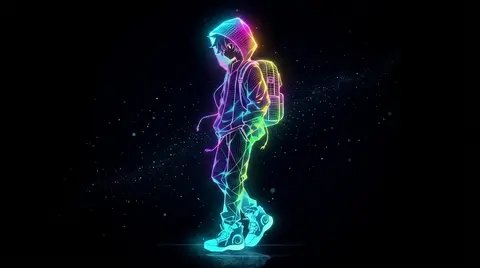
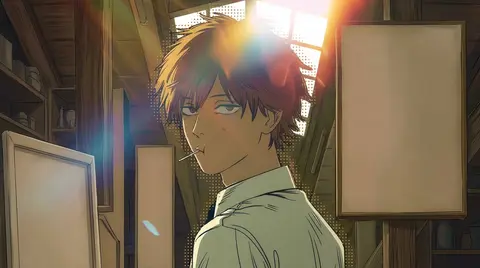
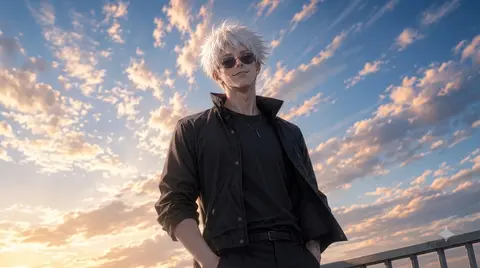
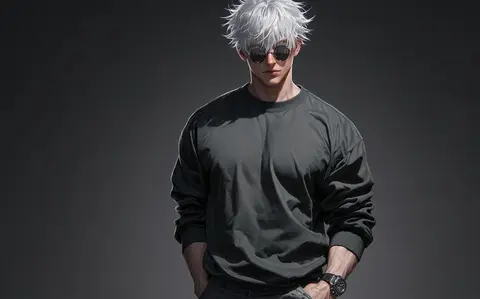
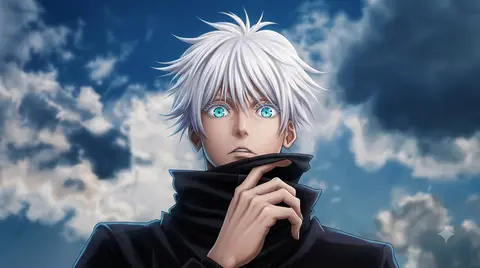
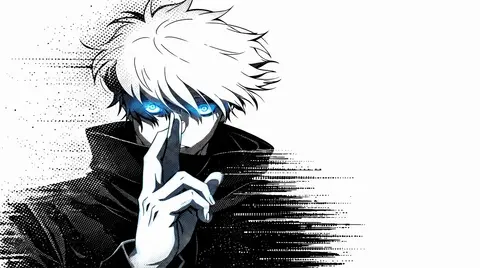
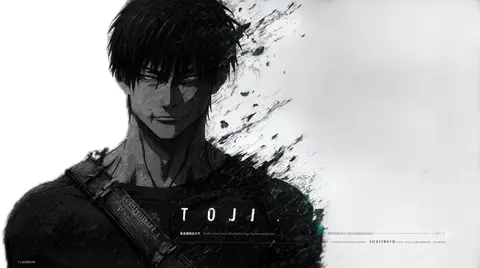
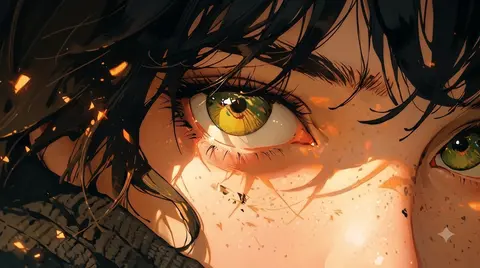
Anime boy wallpapers gather the gallery's moodiest male-portrait art, from a hooded figure in neon to a quiet moment in the rain. These are cinematic, character-focused scenes that read beautifully as both phone lock screens and desktop backgrounds. The collection spans multiple moods, giving you options for both dark and light setups.
4 Anime Boy wallpapers live in the gallery — open the collection to browse them all.
- The collection spans neon, rain and classroom aesthetic moods, giving you range across dark and light setups.
- Portrait-orientation anime boy designs convert cleanly to phone wallpapers with the upscaler.
- The neon-lit designs are the most popular style in the collection for dark-mode desktops.
About this anime wallpaper
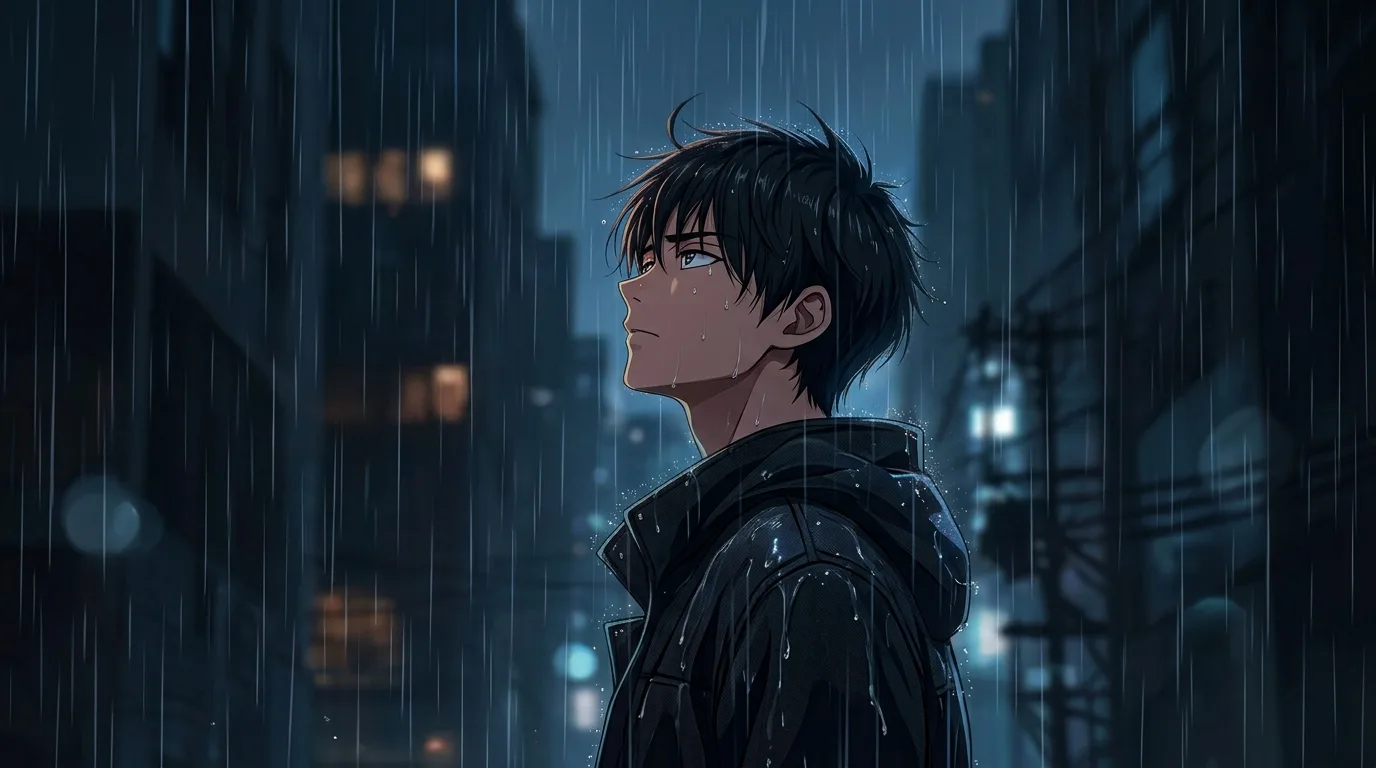
A solitary figure stands in steady rain with a blurred cityscape behind him, the entire scene cast in cool blue and grey tones that feel both wet and heavy. Rain streaks cut diagonal lines across the frame, adding texture and movement to what would otherwise be a still portrait, and the figure's quiet posture suggests introspection rather than urgency.
The blurred background naturally pushes visual noise away from any text or icons placed over it, making this a practical choice for busy desktops where readability matters. The cool color temperature sits well alongside dark system themes, and the rain streaks provide subtle visual interest in the otherwise open areas of the composition.
This appeals to viewers who connect with moody, atmospheric anime art rather than bright or action-heavy scenes, and the rainy mood pairs naturally with rainy-day playlists or late-night work sessions. It is a wallpaper that sets a specific emotional tone for a workspace rather than simply decorating it.
How to set this wallpaper on your device
On iPhone or iPad
- Tap Download original above, or choose Mobile sizes for an iPhone-optimized pack.
- Save the image to your Photos app.
- Open Photos, tap the image, then tap Share → Use as Wallpaper.
- Pinch to adjust the position, then tap Set and choose Lock Screen, Home Screen, or Both.
On Android
- Download the wallpaper by tapping Download original or Mobile sizes.
- Open the image in your gallery app.
- Tap the menu (three dots) and select Set as wallpaper.
- Choose Home screen, Lock screen, or both, then confirm.
On Windows
- Download the wallpaper — tap Desktop sizes for a 1080p, 2K or 4K version.
- Right-click the downloaded file and select Set as desktop background.
- Alternatively, go to Settings → Personalization → Background and browse to the file.
On macOS
- Download the wallpaper — tap Desktop sizes for a resolution-matched version.
- Open the image and right-click, or open System Settings → Wallpaper.
- Select Set Desktop Picture and choose your display.
Not sure which size to pick? The original download works at any resolution, but for the sharpest result match your screen. Our upscale guides walk through exact resolutions for every popular device, or use the Pinterest image upscaler to generate custom sizes from this or any other image.
Why this wallpaper works on your screen
The image is widescreen 16:9 at 1376×768, and its dominant tones lean midnight blue — a good match for a 16:9 laptop, desktop monitor or smart TV. Widescreen wallpapers like this one sit cleanly on monitors and laptops without letterboxing or stretching. If your display is 4K, you can upscale this image for even sharper detail using the desktop sizes preset. Tap Desktop sizes to generate exact resolutions for your device without any cropping, or paste it into the Pinterest image upscaler for custom sizes.
Understanding this wallpaper's dimensions
This image measures 1376 pixels wide by 768 pixels tall, giving it a 1.79:1 aspect ratio.Being wider than it is tall, it's a landscape-oriented image — the standard format for desktop and laptop monitors where the horizontal axis is longer.
The file is a JPEG at 572 KB, which meansit's a moderate size — a good balance between image quality and download speed.
If you need this wallpaper at a different resolution — say, a specific iPhone model or an ultrawide monitor — the image upscaler can generate every common device size from this image in one download. The upscaled versions use the original as the source and fit it inside each target frame without cropping.