About this space wallpaper
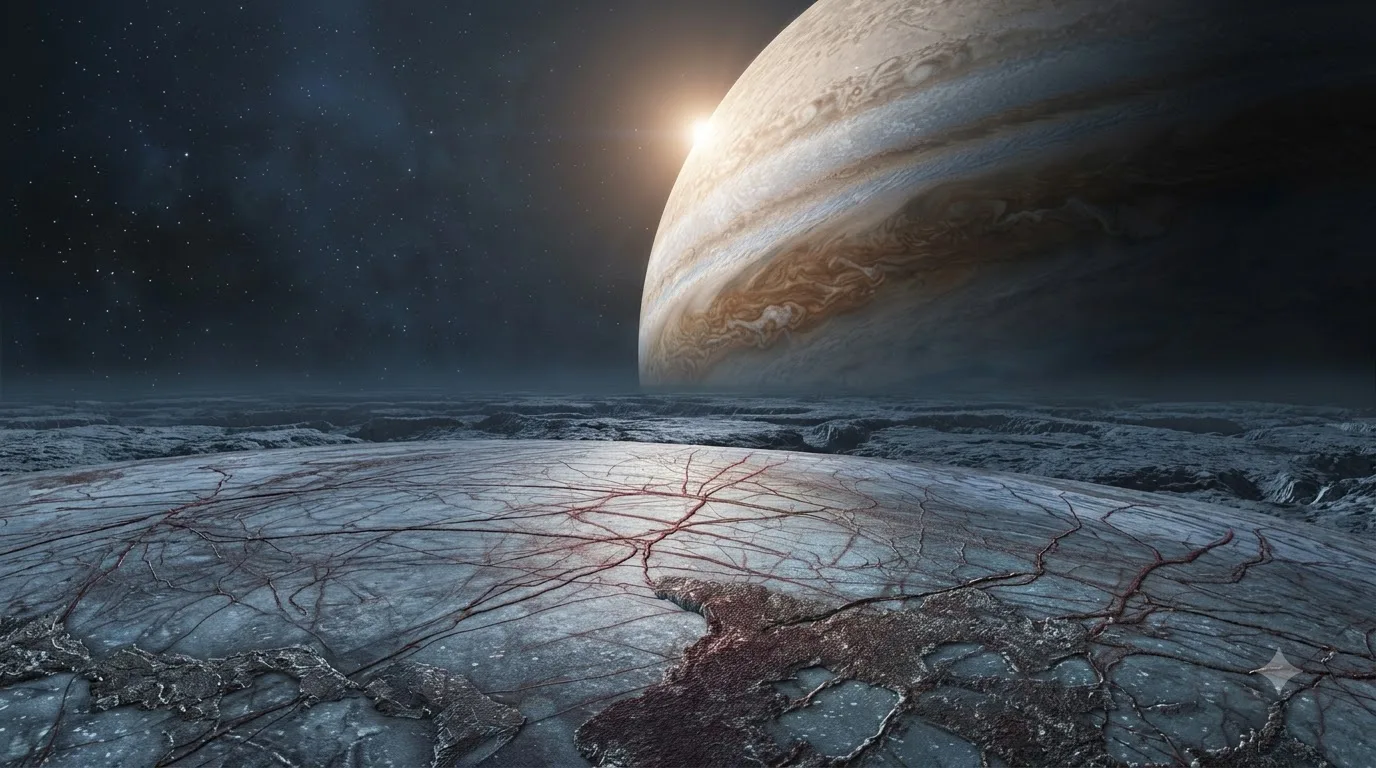
Jupiter fills the upper portion of the frame, its banded atmosphere catching a low-angle light that emphasizes the texture of its cloud layers. Below, the icy surface of Europa stretches toward the horizon, rendered in cold blues and grays with a faint sunrise glow along the ridge line. The scale is what sells this: the gas giant looms so large that it dwarfs the moon's horizon, creating a sense of proximity that feels both beautiful and slightly unsettling.
The image splits into two distinct zones: the warm, detailed upper band of Jupiter and the cool, stark lower band of Europa's surface. This division gives you a natural separation for desktop organization, with icons and widgets clustering in the mid-range where the two tones meet. The star field in the background stays dark enough to keep text readable. On a phone, the vertical orientation crops the scene tighter, which actually intensifies the feeling of Jupiter hanging overhead.
Hard science fiction readers and space fans will find this one resonates. It pairs well with the astronaut and ringed-planet wallpapers for a cohesive space collection, or it can serve as a standalone piece on a work display where you want something vast but not distracting. The sunrise detail along Europa's horizon adds a quiet optimism that balances the otherwise imposing scale of the scene.
How to set this wallpaper on your device
On iPhone or iPad
- Tap Download original above, or choose Mobile sizes for an iPhone-optimized pack.
- Save the image to your Photos app.
- Open Photos, tap the image, then tap Share → Use as Wallpaper.
- Pinch to adjust the position, then tap Set and choose Lock Screen, Home Screen, or Both.
On Android
- Download the wallpaper by tapping Download original or Mobile sizes.
- Open the image in your gallery app.
- Tap the menu (three dots) and select Set as wallpaper.
- Choose Home screen, Lock screen, or both, then confirm.
On Windows
- Download the wallpaper — tap Desktop sizes for a 1080p, 2K or 4K version.
- Right-click the downloaded file and select Set as desktop background.
- Alternatively, go to Settings → Personalization → Background and browse to the file.
On macOS
- Download the wallpaper — tap Desktop sizes for a resolution-matched version.
- Open the image and right-click, or open System Settings → Wallpaper.
- Select Set Desktop Picture and choose your display.
Not sure which size to pick? The original download works at any resolution, but for the sharpest result match your screen. Our upscale guides walk through exact resolutions for every popular device, or use the Pinterest image upscaler to generate custom sizes from this or any other image.
Why this wallpaper works on your screen
The image is widescreen 16:9 at 1376×768, and its dominant tones lean deep charcoal — a good match for a 16:9 laptop, desktop monitor or smart TV. Widescreen wallpapers like this one sit cleanly on monitors and laptops without letterboxing or stretching. If your display is 4K, you can upscale this image for even sharper detail using the desktop sizes preset. Tap Desktop sizes to generate exact resolutions for your device without any cropping, or paste it into the Pinterest image upscaler for custom sizes.
Understanding this wallpaper's dimensions
This image measures 1376 pixels wide by 768 pixels tall, giving it a 1.79:1 aspect ratio.Being wider than it is tall, it's a landscape-oriented image — the standard format for desktop and laptop monitors where the horizontal axis is longer.
The file is a JPEG at 226 KB, which meansit's a lightweight download that loads quickly even on slower connections.
If you need this wallpaper at a different resolution — say, a specific iPhone model or an ultrawide monitor — the image upscaler can generate every common device size from this image in one download. The upscaled versions use the original as the source and fit it inside each target frame without cropping.